Download Pin-Up for PC Windows and macOS

Enjoy sports betting, live casino, roulette, slots, and table games in one desktop app. Available for Windows and macOS, free to download. You get the same features as the website plus faster start-up, stable performance, and full-screen play.

Pin-Up desktop app download for Windows and macOS: sports betting and casino; free, fast start, stable, full-screen.

Pin-Up PC Client Review

This desktop client brings the full platform to your computer; faster loading, more stable sessions, and an immersive full-screen layout.

Key details of the PC client:

Category

Sports betting; Online casino; Live casino; Slots; Table games; Game shows

Compatible with Windows

Windows 10, Windows 11

Compatible with macOS

macOS 12 or later

Pros and Cons of Using Pin-Up PC

Here is a quick look at the gains and trade-offs before you install. Decide what suits your computer use and betting style.

Pros Cons
Faster start-up than browser Requires installation
Stable sessions during live betting Takes storage space
Full-screen casino gameplay Updates may need a restart
Quick bet slip access and hotkeys
Lower tab clutter; focused UI
Fewer resource spikes on long play
Desktop notifications for key events

Download and Install the Pin-Up App on Windows

The Windows version runs on most modern PCs running Windows 10 or 11. You only need a stable internet connection and enough free disk space.

Step 1

Click the button below

Use the Download Pin-Up for Windows button to get the installer.

Step 2

Save the installer

Choose a folder on your computer and save the .exe file.

Step 3

Run as administrator

Double-click the file and allow the security prompt.

Step 4

Follow setup

Pick install folder and accept the licence terms.

Step 5

Create a shortcut

Tick “Create Desktop Shortcut” for quick access.

Step 6

Launch and sign in

Open the app, log in or register.

Step 7

Allow first-time updates

If prompted, let the app update and restart.

Download and Install the Pin-Up App on Mac

The Mac version works on Apple silicon and Intel Macs running recent macOS releases. Ensure you have internet and free space available.

Step 1

Click the button below

Start the download for Mac from this page.

Step 2

Open the .dmg file

Find it in Downloads and double-click.

Step 3

Drag to Applications

Move the app icon into the Applications folder.

Step 4

Allow from Security settings

If blocked, go to System Settings > Privacy & Security and allow the app to open.

Step 5

Launch and sign in

Open from Applications, then log in or create an account.

Step 6

Keep it handy

Right-click the Dock icon and choose Keep in Dock.

Update the PC Client

Updates add new features, improve stability, and keep your account secure. Install them as soon as they are available.

Step 1

Open the Pin-Up PC icon

Launch the desktop app to access the betting site.

Step 2

Accept the prompt

If you see an update notice, click Update and wait for download.

Step 3

Check manually

In Settings, select Check for updates if no prompt appears.

Step 4

Restart the app

Close and reopen to finish the installation.

Register and Start Betting with the PC App

Create your account in a few steps and get full access to betting markets, casino games, payments, and support.

Step 1

Open the app on your computer

Click the desktop shortcut.

Step 2

Click Sign Up

Choose registration by mobile number or email.

Step 3

Fill in your details

Enter personal information, set a strong password, and accept the terms.

Step 4

Verify and log in

Confirm by code or email link, then sign in to start.

Play on the Pin-Up Official Website

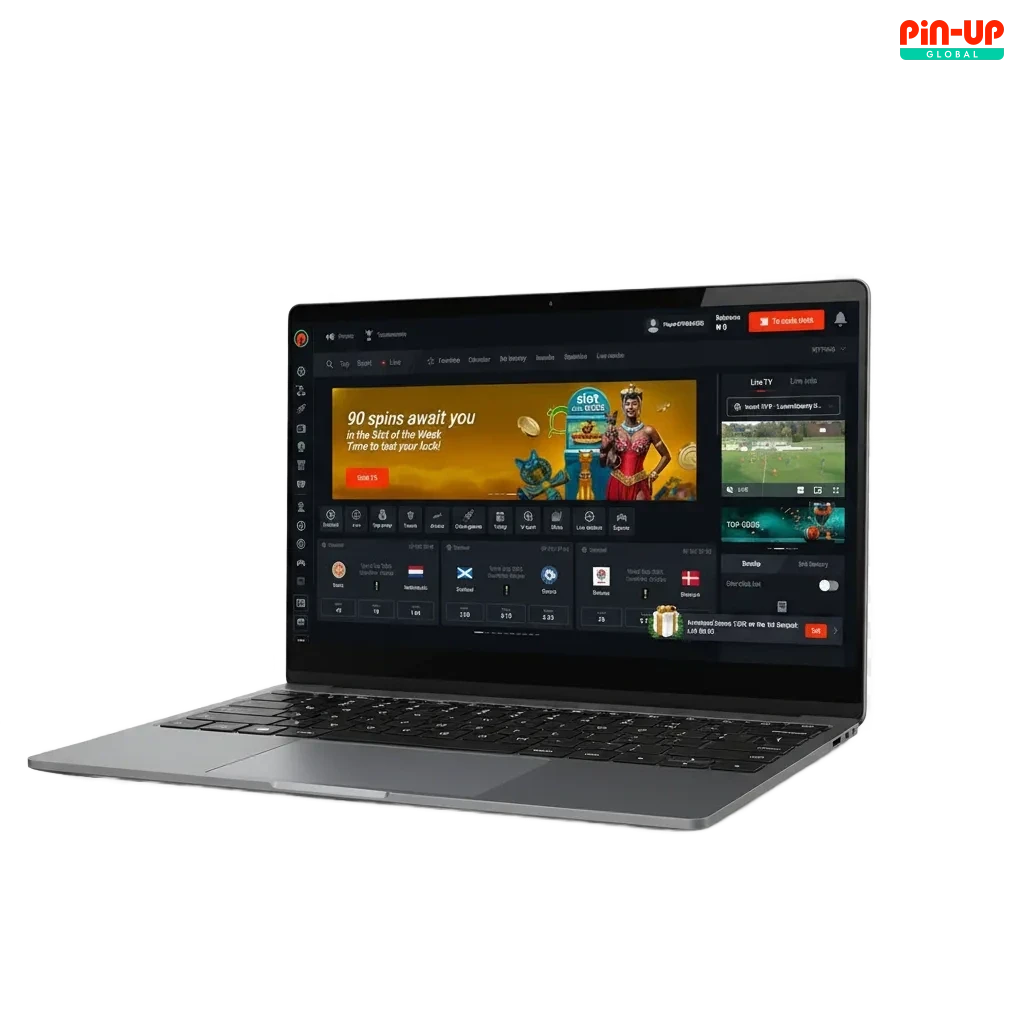
It is not compulsory to install a PC app to enjoy the platform. You can use the official website for betting and casino games on any computer. The site offers the same markets, live odds, and game catalogue. You can log in, deposit, and play straight in your browser if you prefer.

Pin-Up official website on desktop browser, showing betting markets, live odds, casino games, and login/deposit options.

Support for Desktop Users

Need help on desktop? Get quick assistance through these channels.

  1. Live chat: Open the Help icon in the app and start a 24/7 chat.
  2. Email: Use the in-app Contact Us form to send a message and attachments.
  3. Social media: Message the verified pages linked in the website footer.
  4. Help Centre: Browse step-by-step articles in the app’s Help section.
  5. Phone: Not offered at this time.
Desktop support options: 24/7 live chat, in-app email, social media, Help Centre; phone support not offered.

FAQ

Is the PC app free to download?

Yes. The download and installation are free. You only fund your account for bets and games.

Do I need a new account if I used the website before?

No. Your existing login works on desktop and mobile.

Can I switch between PC and phone without issues?

Yes. You can log in on different devices and continue your play.

The installer did not open. What should I do?

On Windows, run as administrator and allow the security prompt. On Mac, allow the app in Privacy & Security.

Can I set limits on my play?

Yes. Go to Settings to set deposit limits, session reminders, and time-outs.

Updated: